Helping your contacts use the Portal
Walk through what the Contacts Portal is, how your contacts get access, and how to support them when they have questions.
What the Contacts Portal is
The Contacts Portal is a self-service area where the people on your roster — reporters, freelancers, vendors, anyone you reach out to — can view jobs, manage their availability, and update their own info, without needing your help for every change.
It’s built so coordinators can spend less time fielding messages like “can you change my number?” or “I’m not free that day,” and let contacts handle their own profile keep-up.
How your contacts get access today
Today, contacts get to the portal automatically through outreach — there’s no separate “invite” step:
- You include a contact in an outreach (for example, sending out a job).
- The outreach email includes an Update your availability link in the footer.
- Clicking that link signs them into the portal — no password, no setup screen, no friction.
Each contact’s magic link is unique to them and rotates on use. Sessions last 30 days and renew each time they visit.
TEST) to avoid confusion on their end.What your contact sees when they sign in
Once signed in, the portal opens to a four-tab hub:
- Jobs — open positions they can request to take.
- My Requests — the requests they’ve submitted, with status chips so they can track each one.
- Upcoming — gigs they’ve accepted in the next 90 days.
- Availability — a summary of when they’re marked as available or unavailable.
The hub itself is read-mostly — it’s where they orient. Edits happen on a separate availability page, reached by clicking Edit availability from the hub.
What your contact can (and can’t) edit
On the availability editor, your contact can change:
- Phone number
- City, state, and ZIP code — this also updates their entry in your contact list, so distance-based filters stay accurate.
- Daily availability — mark individual days as up or down.
- Recurring weekly patterns — for example, “always unavailable on Fridays.”
- Blackout ranges — vacation spans, with an optional reason.
What your contacts cannot change in the portal:
- Their name — only you can update this from the contact card.
- Their email address — same reason. Email is the magic-link delivery channel; changing it has security implications, so coordinators control it.
If a contact asks you to change either, do it from Contacts, then click their row and use Edit.
How you know they’re using it
When a contact updates their own info through the portal, their card on your Contacts page shows a Self-updated badge for the next 7 days. That’s your signal: they’ve been in, they handled their own keep-up, you didn’t need to chase them.
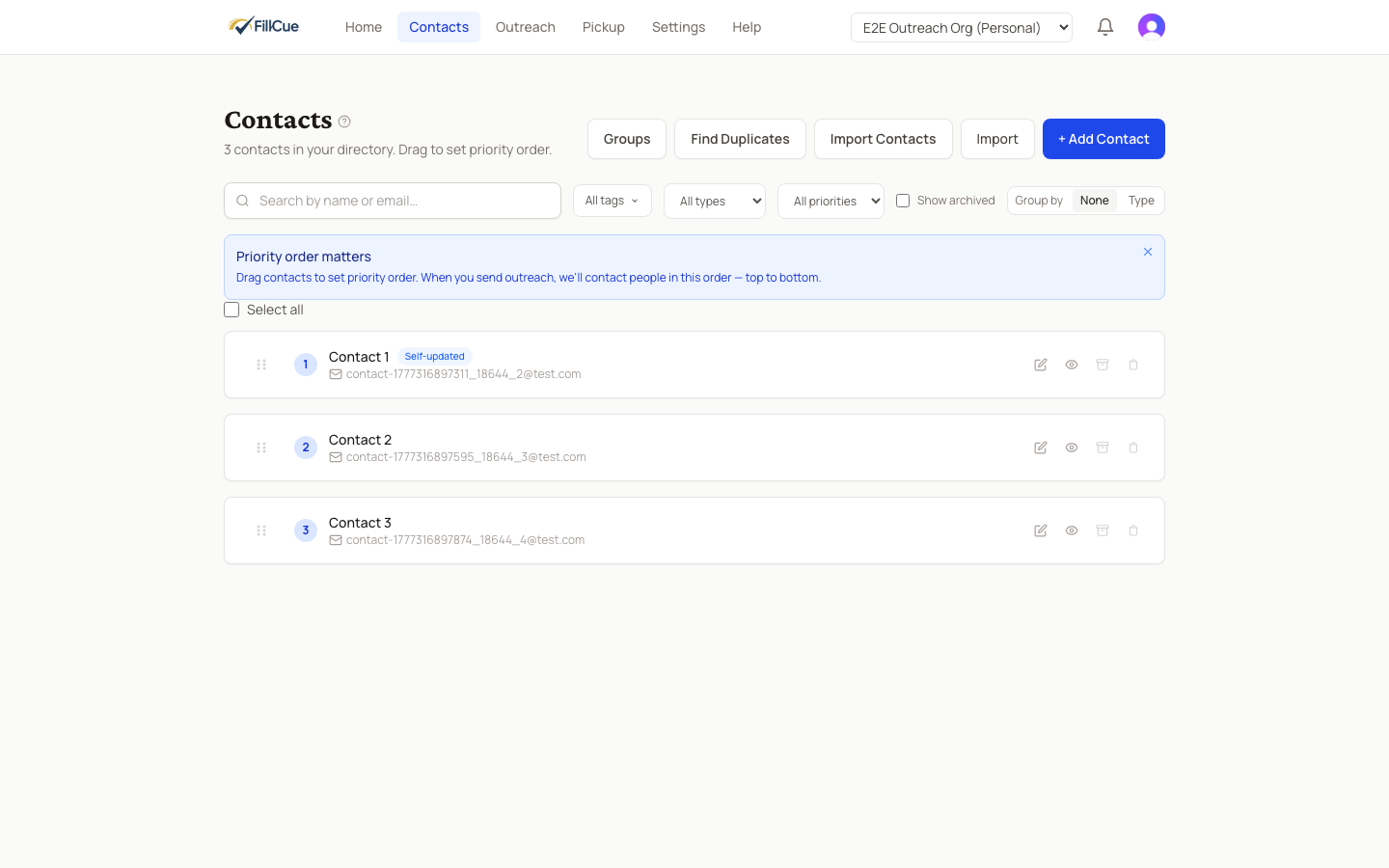
For a fuller view, click any contact and open the history drawer — you’ll see an audit log of every change with the source (you, them, an integration, etc.).
Common questions
“My contact says they didn’t get a portal link.”
Their portal link arrives in the footer of every outreach email you include them in. If they can’t find it, ask them to check spam — or include them in any outreach (even a test one) to issue a fresh link.
“My contact’s link expired.”
Tell them to go to the portal sign-in page and enter their email — they’ll get a fresh 6-digit code that signs them in for another 30 days. The expired link doesn’t need to be revoked; it’s already inert.
“My contact works for two different agencies on FillCue.”
Each portal session is scoped to one organization. If a contact is on multiple rosters, they’ll be asked to choose which organization to view on each new sign-in. They can switch by signing out and following a magic link from the other org’s outreach.
“Can I send someone a portal invite without including them in an outreach?”
Not yet. We’re tracking this as a follow-up — a Send Portal Invite button on the contact card. For now, the cleanest workaround is to include them in any outreach (a test outreach works fine) so they get a link.
“Can I see what my contact saw before they declined?”
Yes — the outreach detail page shows each offer’s state, and clicking a contact’s row shows the same offer view they responded to.
Disabling portal access
There’s no per-contact “disable portal” toggle today. Portal access is implicit: any contact who’s included in outreach can use it, and anyone who isn’t can’t.
If a specific contact wants to stop receiving portal links altogether, the cleanest way is to remove their email/phone from your dispatch list (or move them to a group you don’t cascade to). They’ll stop getting outreach emails, which means they’ll stop getting magic links.
Still have questions? Contact support