A short tour of what the portal is, how to sign in, and how to manage your availability.
What is this portal?
The roster you’re on uses FillCue to coordinate jobs. This is your self-service hub — the place where you can:
- See open jobs you’re eligible for.
- Track requests you’ve submitted.
- See gigs you’ve already accepted.
- Mark when you’re available or unavailable, so you don’t get pinged for dates you can’t cover.
- Update your phone, city, and ZIP without messaging your coordinator.
You don’t need a password to use it. Access is by email, and your sessions stay open for 30 days.
Signing in
There are two ways to get in:
- Click a link from an outreach email. Whenever your coordinator sends out a job request that includes you, the email has an Update your availability link in the footer. Click it — you’re signed in instantly, no code needed.
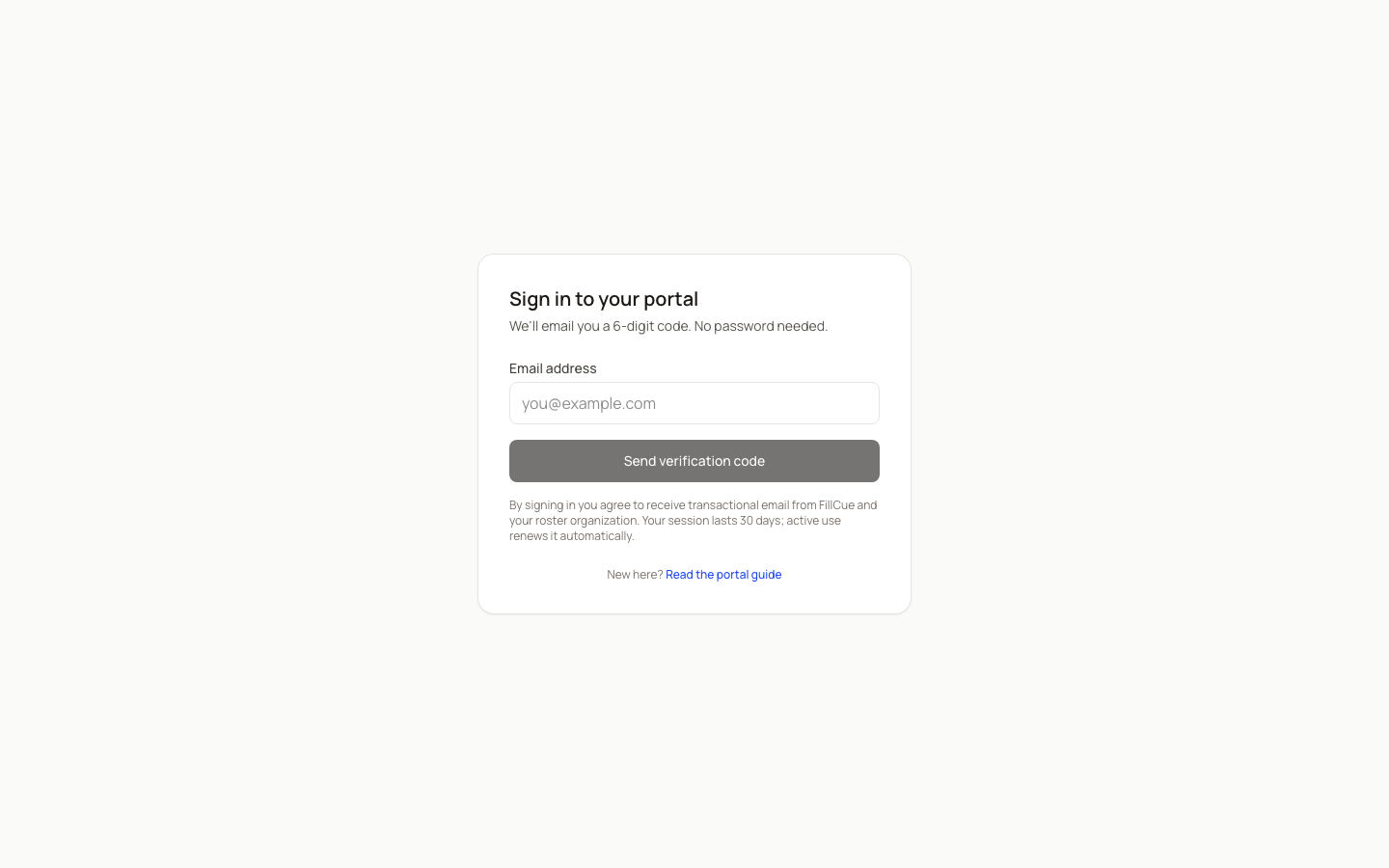
- Request a 6-digit code at the sign-in page. Go to the portal sign-in page, type your email, and we’ll send you a code. The code expires after a few minutes and can only be used once.
If you work for more than one organization
If you’re on the rosters of two or more agencies that both use FillCue, the portal will ask you to pick which one to view each time you sign in. You’ll see a list of organizations — tap the one you want to manage right now.
To switch organizations later, sign out and follow a link (or request a code) from the other organization’s outreach.
The hub: four tabs to know
Once you’re signed in, you’ll land on your hub:

- Jobs — open positions you can submit a request for. If one fits, tap the request button on the card and your coordinator will see it on their end.
- My Requests — the requests you’ve already submitted. Each one has a status chip (Pending, Accepted, Declined, Withdrawn) so you always know where it stands.
- Upcoming — gigs you’ve accepted in the next 90 days. Use this as your at-a-glance schedule.
- Availability — a summary of when you’re marked as available or unavailable. Tap Edit availability to make changes.
The hub itself is read-mostly. Most edits live behind the Edit availability button.
Updating your availability and profile
The availability editor lets you set a few different kinds of preferences:
- Day-by-day — tap a date to mark yourself available or unavailable. Useful for one-offs.
- Recurring weekly — set a pattern like “always unavailable on Fridays” and it’ll apply to every Friday going forward.
- Blackout ranges — for vacations or longer breaks, mark a span of dates as unavailable. You can add an optional reason (e.g. “family wedding”) to remind yourself later.
You can also update your contact info on the same screen:
- Phone number
- City, state, and ZIP code — this also helps your coordinator pick the right reporters for nearby jobs, so it’s worth keeping current.
Save when you’re done. Your changes show up on your coordinator’s side immediately.
Things you can’t change here
Two fields are managed by your coordinator and can’t be edited from inside the portal:
- Your name
- Your email address
If either needs to change, message your coordinator directly and they’ll update it on their end. (Email is how the magic link reaches you, so changing it is a two-step process they handle.)
Sessions and signing out
Your portal session lasts 30 days from your last visit. As long as you check in occasionally, you won’t need to request a new code or click a fresh link.
Closing your browser tab does not sign you out — the session is preserved. To explicitly sign out (for example on a shared computer), open the sign-out page and tap the Sign me out button on the confirmation screen. Worth bookmarking if you use a shared device.
Still have questions?
The fastest path is usually to message your coordinator directly — they know your roster, your role, and your context.
If you’re running into something that looks like a bug, you can also email contact@fillcue.com. Include the page you were on and what you expected to happen.
Ready to sign in? Go to the sign-in page